FinanceAI Documentation
A personal finance tracker with a glassmorphism UI, animated charts, PIN security and an AI money coach that runs on the device, with optional Claude AI.
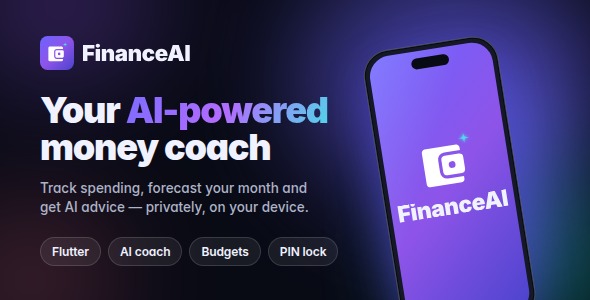
Thank you for choosing FinanceAI! This document has two parts: the Developer guide (setup, customisation and publishing) and the User guide (how to use every screen). Use the sidebar or the search box to jump to any topic.
Features
On-device AI Coach
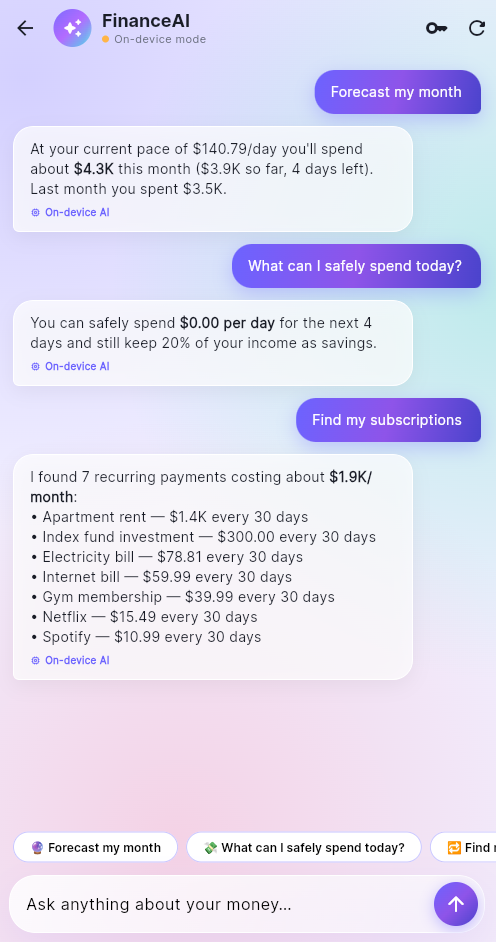
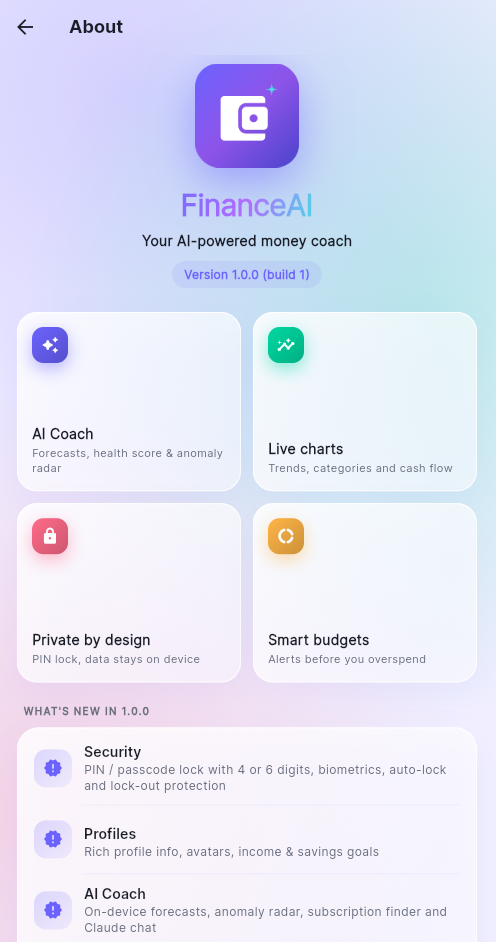
Financial health score, month-end forecast, "safe to spend today", subscription finder and anomaly radar, all without internet.
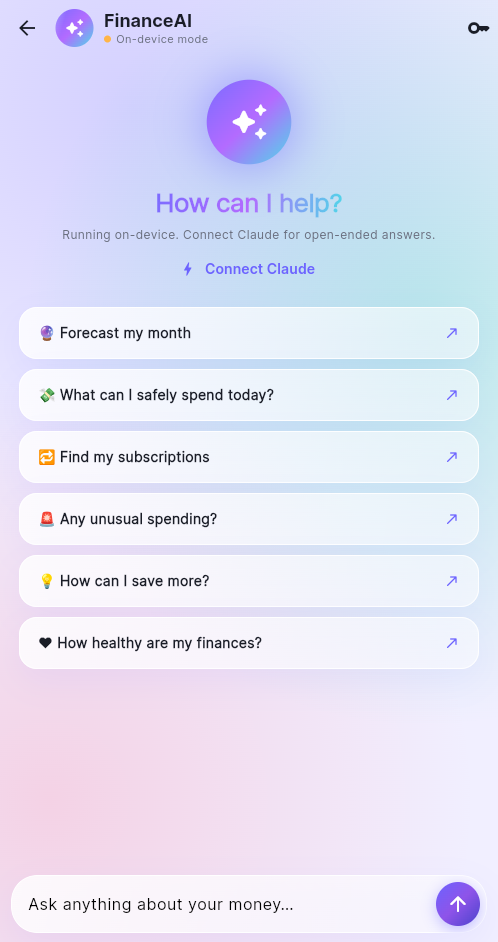
Ask FinanceAI chat
Ask questions in plain English. Answers come from the on-device engine, or from Claude when connected.
Smart auto-category
Type "Uber" or "Netflix" and the right category is picked for you. Learns from your own history.
Interactive charts
Spending trend (7/30/90 days), category donut, 6-month cash flow and monthly reports.
Budgets & alerts
Per-category monthly budgets with warnings at 80% and when a budget is exceeded.
PIN & biometrics
4- or 6-digit PIN (salted SHA-256), fingerprint / Face ID, auto-lock and lock-out after 5 wrong tries.
Multiple profiles
Separate personal, business or family finances, each with avatar, contact info and goals.
Backup & CSV export
Export a full JSON backup, restore it later, or open your transactions in a spreadsheet.
Glass design system
Animated aurora background, frosted cards, smooth transitions, light & dark themes, 20 currencies.
Screenshots
Click any screenshot to enlarge it.
Developer Guide
Install, customise, build and publish the app.
Requirements
| Tool | Version | Notes |
|---|---|---|
| Flutter SDK | 3.47 stable (Dart 3) | Developed and tested on Flutter 3.47.1. pubspec.yaml allows Dart >=3.0.0 <4.0.0. |
| Android Studio | Latest stable | Provides the Android SDK and a bundled JDK. Install Android SDK Command-line Tools from the SDK Manager and run flutter doctor --android-licenses. |
| JDK | 17 or newer | The project uses Gradle 9.3.1 and Android Gradle Plugin 8.13.0, which run on current JDKs (including JDK 25). |
| Xcode | Latest stable (macOS only) | Needed for iOS builds. Minimum iOS deployment target: 13.0. |
| Chrome | Any recent | For running the web version. |
| Disk space | ~5 GB free | The first Android build downloads Gradle, SDK platforms and libraries. |
Windows users: enable Developer Mode (Settings → Privacy & security → For developers). Flutter needs symlink support to build apps with plugins.
Package contents
Installation
- Install Flutter by following the official guide at docs.flutter.dev, then check your setup:
flutter doctor - Open the project. Extract the package and open the
sourcefolder in Android Studio or VS Code. - Get the packages:
flutter pub get - Run the tests to confirm everything works on your machine:
flutter test - Run the app (next section).
The web database files (web/sqlite3.wasm and web/sqflite_sw.js) are already included. If you ever upgrade sqflite_common_ffi_web, regenerate them with dart run sqflite_common_ffi_web:setup.
Running the app
# Android phone / emulator
flutter run

# Web (Chrome)
flutter run -d chrome

# Demo mode: skips onboarding and loads 3 months of sample data
flutter run -d chrome --dart-define=DEMO_MODE=true
Demo mode is perfect for screenshots and client demos. It only runs when you pass --dart-define=DEMO_MODE=true; normal builds never include sample data. Users can also add sample data manually from Settings → Data → Load demo data.
App name & application ID
Do this before publishing. The project ships with the placeholder ID com.example.finance_tracker. Google Play rejects com.example.* IDs, and the ID can never change after release. Use a reverse domain you own, e.g. com.yourcompany.financeai.
Change the application ID
| Platform | File | What to change |
|---|---|---|
| Android | android/app/build.gradle.kts | namespace and applicationId |
| Android | android/app/src/main/kotlin/…/MainActivity.kt | Move the file to a folder matching the new package and update its package line |
| iOS | Xcode → Runner → Signing & Capabilities | Bundle Identifier (PRODUCT_BUNDLE_IDENTIFIER) |
Change the display name
| Platform | File | Key |
|---|---|---|
| Android | android/app/src/main/AndroidManifest.xml | android:label="FinanceAI" |
| iOS | ios/Runner/Info.plist | CFBundleDisplayName, CFBundleName |
| Web | web/manifest.json, web/index.html | name, short_name, <title> |
| In-app text | lib/screens/about_screen.dart, lock_screen.dart | "FinanceAI" strings |
Logo, icons & colours
App icons
All platform icons are generated from the files in assets/ by flutter_launcher_icons (configured at the bottom of pubspec.yaml). Replace the images with your own at the same file names and sizes, then run:
dart run flutter_launcher_icons| File | Size | Used for |
|---|---|---|
logo-1024.png | 1024×1024, no transparency | Legacy Android icon, iOS icon, web icons |
logo-background-1024.png / logo-foreground-1024.png | 1024×1024 | Android adaptive icon (keep the artwork inside the centre 66%) |
logo-monochrome-1024.png | 1024×1024, white on transparent | Android 13+ themed icon |
logo-ios-dark-1024.png / logo-ios-tinted-1024.png | 1024×1024 | iOS 18 dark & tinted icons |
logo-windows-1024.png / logo-macos-1024.png | 1024×1024 | Desktop icons |
android-notification/drawable-*/ic_stat_financeai.png | 24–96 px, white | Android notification icon (copy into android/app/src/main/res/) |
logo-rounded-512.png, lockup-light-1200.png, lockup-dark-1200.png | as named | Shown inside the app (onboarding, About) |
Colours & fonts
All colours live in lib/theme/app_theme.dart in the AppColors class. Change them there and the whole app follows, in both light and dark mode.
primary#6C63FF
accent / income#00D9A3
expense#FF6B8A
brandGradient#7B6CFF → #4FD8E8
The typeface is Inter, loaded through the google_fonts package. Change it in AppTheme._buildTextTheme.
Currency & categories
Currencies
20 currencies are built in (USD, EUR, GBP, BDT, INR, JPY and more), listed in lib/services/currency_service.dart. New installs start in USD (seeded in DatabaseService._seedDefaults), and users can switch at any time in Settings → Currency.
Default categories
The 13 default categories and their sub-categories are defined in DefaultCategories inside lib/models/category_model.dart. Each category's iconCode is mapped to an icon in lib/utils/app_icons.dart.
When you add a category with a new iconCode, also add it to the map in app_icons.dart. Icons must be const Icons.* values; creating icons at runtime with IconData(code) breaks release builds (icon tree-shaking).
AI auto-category keywords
The keywords that choose a category from a transaction title (e.g. "uber" → Transport) are in the _keywords list in lib/services/smart_engine.dart. Add local brands and shops there to make suggestions smarter for your market.
Claude AI setup
All AI features work without any API key. Connecting Claude adds open-ended chat answers and a written "Claude's report" on the AI Coach screen.
- Create an API key at console.anthropic.com.
- In the app, open AI Coach → or Settings → AI → Claude AI and paste the key.
- The key is saved in the device's secure storage. Usage is billed to that Anthropic account.
The model and request settings are in lib/services/ai_service.dart (model claude-opus-5, 120-second timeout). The app sends a summary of the user's finances plus their question, and falls back to on-device answers if the request fails or there is no internet.
For a public release, don't ship your own API key inside the app. Either let each user enter their own key (the current design), or route requests through your own backend server that holds the key.
Notifications
The app uses flutter_local_notifications for two things: a daily reminder to log spending and budget alerts at 80% and 100%. Both are off until the user turns them on in Settings, at which point the OS permission is requested.
- Supported on Android and iOS. On web, budget alerts appear as in-app messages instead.
- The Android setup (permissions, boot receiver, desugaring) is already in
AndroidManifest.xmlandbuild.gradle.kts. - The reminder uses an inexact alarm, so no special "exact alarm" permission is needed.
- The notification icon is
ic_stat_financeaiinandroid/app/src/main/res/drawable-*.
Release builds
Android
- Create an upload keystore (once) and keep it safe. Losing it means you can't update the app:
keytool -genkey -v -keystore upload-keystore.jks -keyalg RSA -keysize 2048 -validity 10000 -alias upload - Create
android/key.properties(it is git-ignored, never share it):storePassword=YOUR_STORE_PASSWORD keyPassword=YOUR_KEY_PASSWORD keyAlias=upload storeFile=C:/path/to/upload-keystore.jks - Build:
# App bundle for Google Play
flutter build appbundle --release

# APK for direct install / testing
flutter build apk --release
Without key.properties, release builds are signed with the debug key. That's fine for testing on a phone, but Google Play won't accept it. The APK is created at build/app/outputs/flutter-apk/app-release.apk.
iOS
flutter build ipa --releaseThen upload with Xcode Organizer or Transporter. Set your Team and Bundle Identifier in Xcode first. The Face ID permission text is already in Info.plist.
Web
flutter build web --releaseDeploy the build/web folder to any static host over HTTPS.
Versioning
Update version: 1.0.0+1 in pubspec.yaml before every release. The part after + is the build number and must increase on every store upload.
Architecture
  Screens (lib/screens)  ──watch──▶  AppProvider (ChangeNotifier)
                                         │
        ┌──────────────┬─────────────────┼──────────────────┬───────────────────┐
        ▼              ▼                 ▼                  ▼                   ▼
 DatabaseService   SmartEngine       AIService        SecurityService   NotificationService
(SQLite) (on-device AI) (Claude, optional) (PIN, biometrics) (Android / iOS)- State:
provider.AppProviderholds all app state and is the only class the UI talks to. - SmartEngine is rebuilt lazily after every data change. It computes forecasts, the health score, anomalies, subscriptions and category suggestions, and answers chat questions offline.
- Design system:
lib/widgets/glass.dart(GlassCard, AuroraBackground, Pressable, AnimatedCounter, Haptics) andlib/widgets/charts.dart. Scaffolds are transparent so the aurora background shows through. - App lock:
_AppGateinmain.dartkeeps the app mounted but hidden while locked, so navigation state survives a lock.
Data & storage
| Data | Where |
|---|---|
| Transactions, accounts, categories, budgets, profiles, settings | SQLite database finance_tracker.db (WASM SQLite in the browser on web) |
| PIN hash & salt, biometric and auto-lock settings, Claude API key | Platform secure storage (flutter_secure_storage) |
| Profile details (email, phone, avatar, goals) | settings table, key profile_meta:<profileId> |
| Onboarding flag | shared_preferences |
- Transactions belong to accounts, and accounts belong to profiles. All queries are scoped to the active profile.
- Saving a transaction and updating the account balance happen in one SQL transaction, so balances stay correct even if the app is closed mid-save.
- Android auto-backup is disabled (
android:allowBackup="false"), so financial data isn't copied to cloud backups.
Testing
flutter analyze
flutter test
The test/ folder contains 38 unit and widget tests covering the SmartEngine (forecast, safe-to-spend, subscriptions, anomalies, auto-category), the database (balances, profile scoping, backup import/export), PIN security (hashing, lock-out, migration), formatters and the PIN keypad. Database tests run on real SQLite through sqflite_common_ffi.
Manual test checklist
- Add, edit and delete an income and an expense; check the balance.
- Create a budget and exceed it; check the alert.
- Turn the PIN on, lock the app, enter a wrong PIN, then unlock.
- Fingerprint / Face ID on a real device.
- Daily reminder, including after a phone restart.
- Export a backup and import it again.
- Light and dark mode on small and large screens.
Troubleshooting
"Building with plugins requires symlink support" (Windows)
Enable Developer Mode: run start ms-settings:developers and switch it on, then restart your terminal.
"Gradle build failed due to Java/Gradle incompatibility"
Your JDK is newer than the Gradle version supports. This project uses Gradle 9.3.1 (android/gradle/wrapper/gradle-wrapper.properties), which supports current JDKs. If you downgraded Gradle, either upgrade it again or point Flutter to an older JDK with flutter config --jdk-dir=<path>.
"Failed to create directory…" or "There is not enough space on the disk"
The first Android build needs several GB. Free space on the drive that holds your user folder, or move the Gradle cache by setting the GRADLE_USER_HOME environment variable to another drive.
"This application cannot tree shake icons fonts"
Some code creates IconData(…) at runtime. Use const Icons.* values instead. See Currency & categories.
Web shows "No categories available" or data doesn't load
Make sure web/sqlite3.wasm and web/sqflite_sw.js exist (run dart run sqflite_common_ffi_web:setup). Note that each browser and origin keeps its own separate data.
Notifications don't appear
Notifications work on Android and iOS only. Check that the user allowed notifications for the app in the phone's settings.
Claude answers "Your Claude API key was rejected"
The key is wrong, expired or has no credit. Re-enter it in Settings → AI → Claude AI.
Dependencies
| Package | Purpose |
|---|---|
provider | State management |
sqflite, sqflite_common_ffi_web, path, path_provider | Local SQLite database (mobile, desktop & web) |
fl_chart, flutter_animate, google_fonts, cupertino_icons | Charts, animations, typography, icons |
flutter_local_notifications, timezone | Daily reminder & budget alerts |
local_auth, flutter_secure_storage, crypto | Biometrics, secure storage, PIN hashing |
csv, share_plus, file_picker | CSV export, sharing, backup import |
http, url_launcher | Claude API requests, opening links |
intl, uuid, shared_preferences, package_info_plus | Formatting, IDs, simple flags, app version |
dev: flutter_launcher_icons, sqflite_common_ffi, flutter_lints | Icon generation, database tests, linting |
User Guide
Everything you can do in FinanceAI, screen by screen.
Getting started
- Open the app and swipe through the short introduction, or tap Skip.
- Set your currency: tap the button on the home screen, then Currency.
- Personalise your profile: tap your avatar on the home screen to add your name, an avatar and your goals.
- Add your first transaction with the Add button.
- Just want to look around? Go to Settings → Data → Load demo data to fill the app with 3 months of sample transactions.
Home dashboard
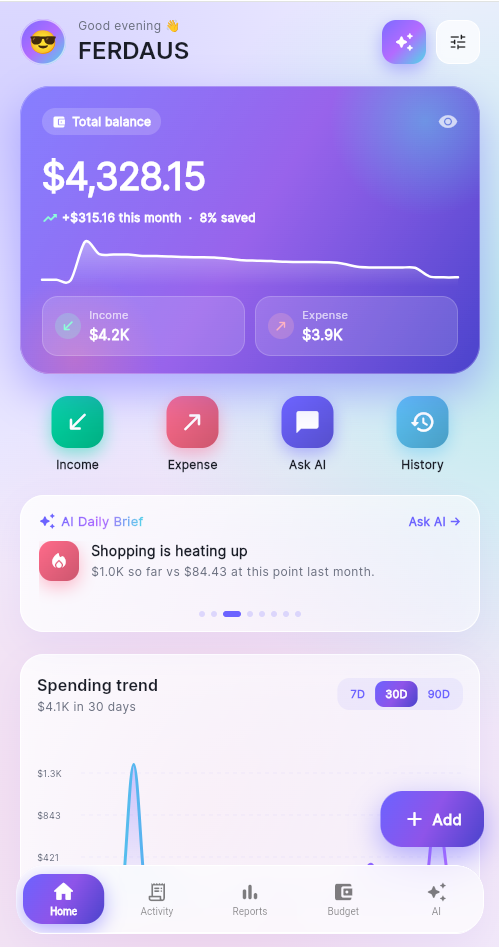
- Total balance counts up when the app opens. Tap the eye icon to hide amounts in public.
- The small line shows how your money moved over the last 30 days. Below it you see this month's income and expense.
- Quick actions: add income or an expense, ask the AI, or open your history.
- AI Daily Brief rotates through your most useful insights. Tap Ask AI → to chat about them.
- The button (top right) opens the AI chat and opens Settings.
Charts, budgets & recent activity
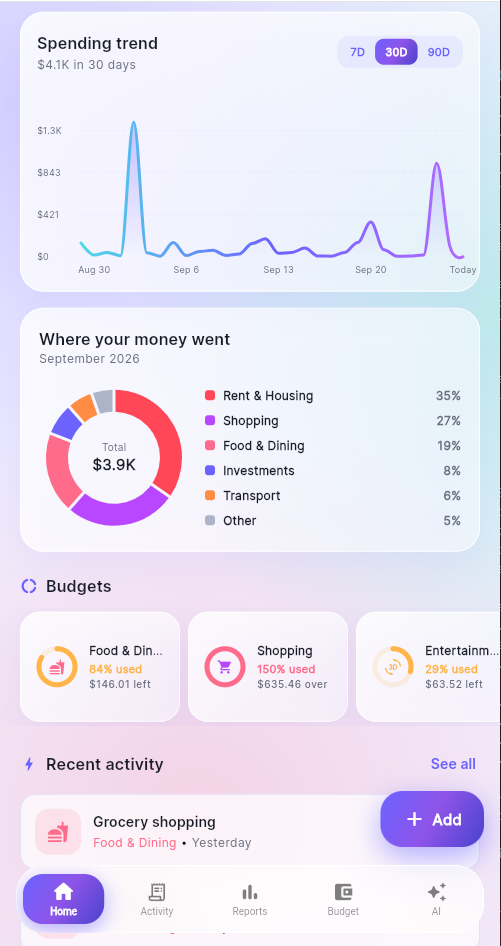
- Spending trend: switch between 7D, 30D and 90D. Touch the chart to see the exact amount for a day.
- Where your money went: this month's spending by category. Touch a slice to highlight it.
- Budgets: swipe sideways to see how much of each budget is used.
- Recent activity: your last 5 transactions. Tap one to edit it, or swipe it left to delete.
Adding transactions
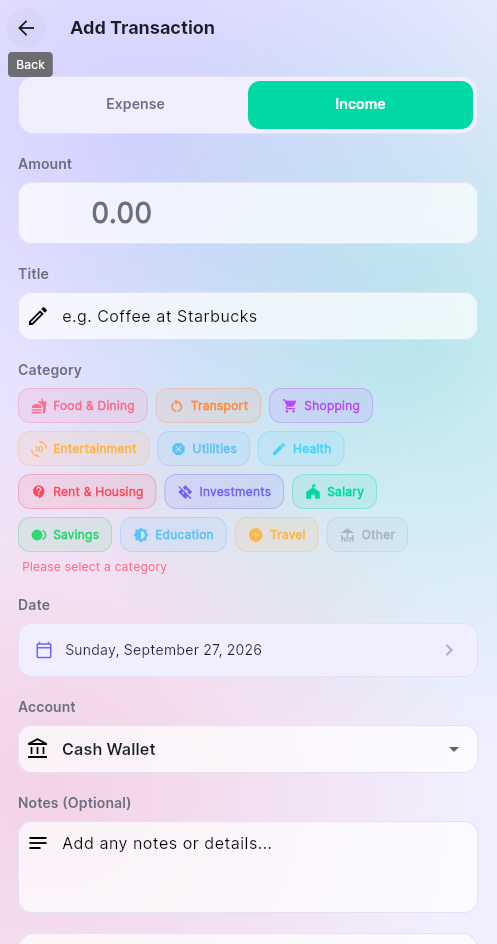
- Tap Add, then choose Expense or Income.
- Enter the amount and a title, e.g. "Uber to office".
- The category is picked for you and marked AI picked. Tap a different chip to change it.
- Optionally change the date or account, add notes, or turn on Recurring for monthly bills.
- Tap Add Transaction.
The more you use the app, the smarter the suggestions get. Titles you've used before get the same category again.
Activity
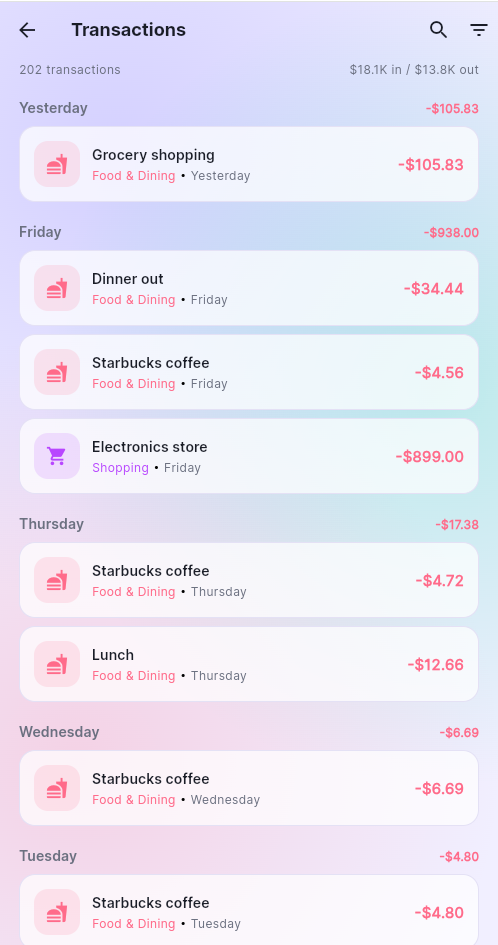
The Activity tab lists every transaction grouped by day, with each day's total on the right. At the top you see how many transactions you have and your total in/out.
- Search by title or note.
- Filter by type or category.
- Tap a transaction to edit it, or swipe it left to delete it (you'll be asked to confirm).
Reports
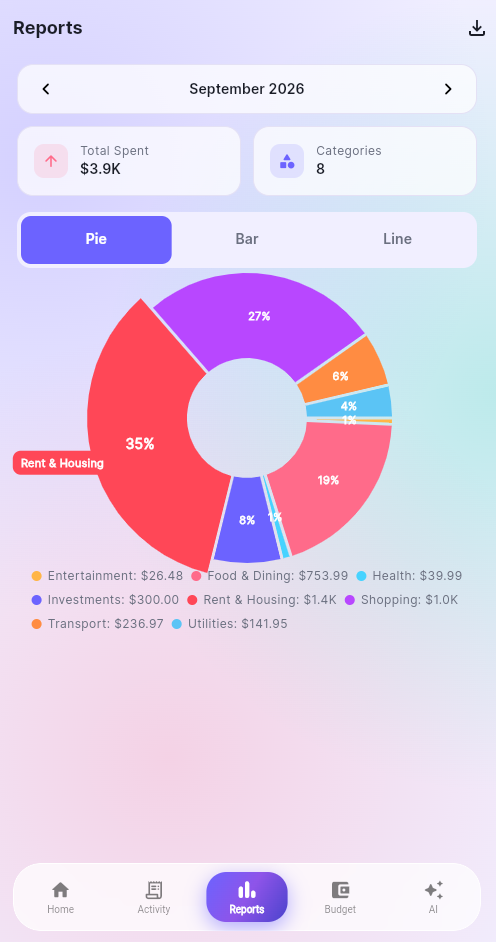
- Use to move between months.
- Switch between Pie (spending by category), Bar (last 6 months) and Line (daily spending).
- Tap the button to export the selected month as a CSV file you can open in Excel or Google Sheets (Android, iOS and desktop).
Budgets
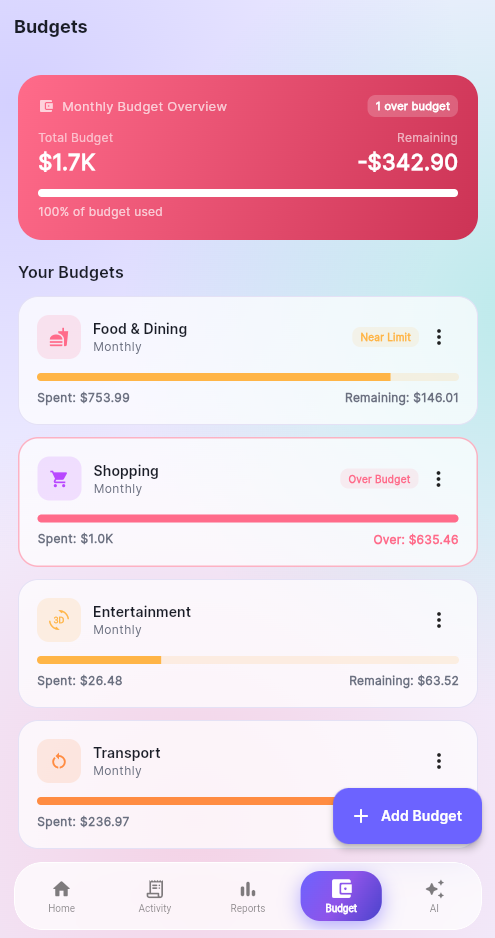
- Open the Budget tab and tap Add Budget.
- Choose a category and enter your monthly limit.
- Watch the progress bars: Near Limit appears at 80% and Over Budget when you go past 100%.
Use the menu on a budget to edit or delete it. With Budget alerts on (Settings), you'll also get a notification when you cross 80% or 100%.
AI Coach
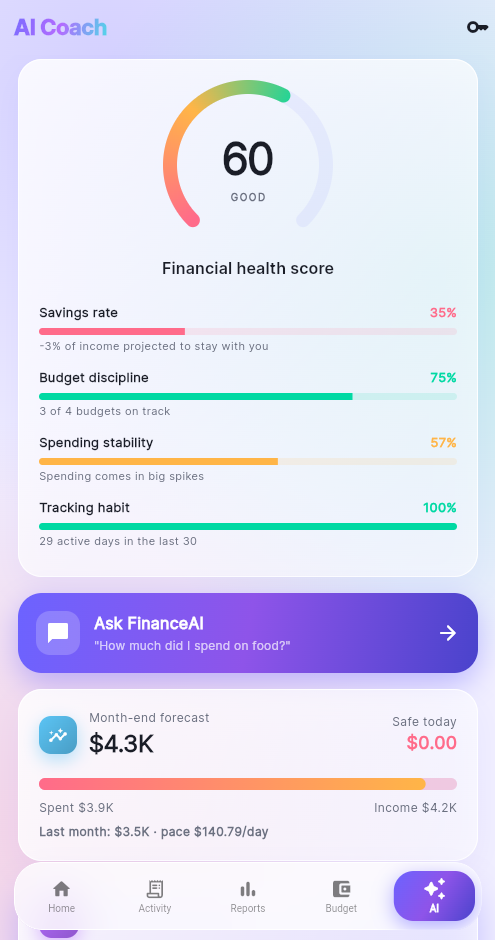
The AI tab is your personal money coach. Everything here is calculated on your phone.
- Financial health score (0–100) is based on four factors: savings rate, budget discipline, spending stability and how regularly you track.
- Month-end forecast shows how much you'll likely spend by the end of the month at your current pace.
- Safe to spend today is how much you can spend per day and still keep your savings target (20% by default, changeable in your profile).
- Smart insights highlight categories that are rising, budgets at risk and more.
- Recurring payments lists subscriptions and bills found automatically.
- Anomaly radar flags unusually large purchases.
Ask FinanceAI
Open the chat from the button on the home screen or Ask FinanceAI on the AI tab. Try questions like:
Answers labelled On-device AI are calculated on your phone. To get open-ended, conversational answers, tap and Connect Claude with an Anthropic API key. Answers from Claude are labelled Claude.
Profile
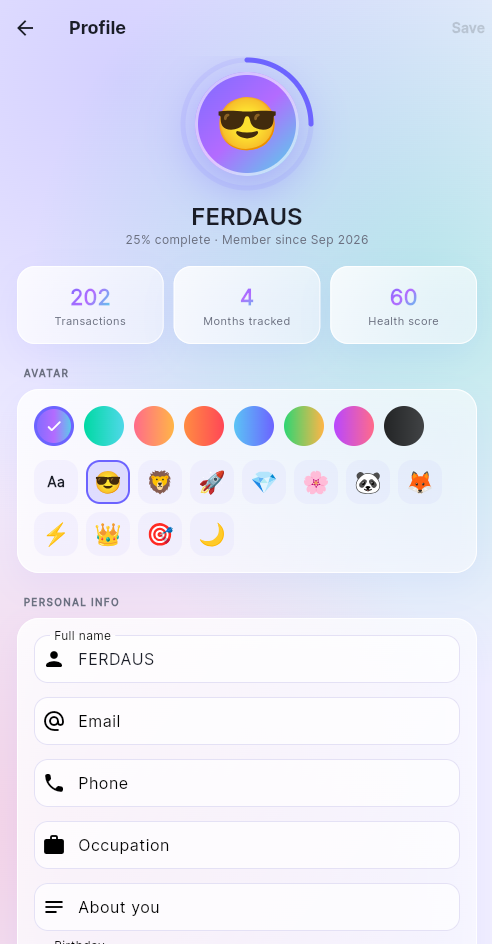
Tap your avatar on the home screen or Settings → Profile info.
- Choose an avatar colour and emoji.
- Add your name, email, phone, occupation, a short bio and your birthday.
- Set a monthly income goal and your savings target, which the AI uses for "safe to spend".
- Profiles: create separate profiles (personal, business, family), switch between them, or delete one. Each profile has its own accounts, budgets and transactions.
Tap Save when you're done. If you leave with unsaved changes, the app asks first.
Security & PIN
Open Settings → Security & PIN.
- Turn on PIN / Passcode, choose 4 or 6 digits, and enter your PIN twice. Easy PINs like 1111 or 1234 aren't allowed.
- Optionally turn on Biometric unlock (fingerprint / Face ID) on supported phones.
- Choose when the app locks with Auto-lock: immediately, after 1, 5 or 15 minutes, or only when the app restarts.
- Use Lock now to lock the app instantly.
Your PIN can't be recovered. After 5 wrong attempts the app pauses for 30 seconds. Keep a backup of your data in case you forget your PIN.
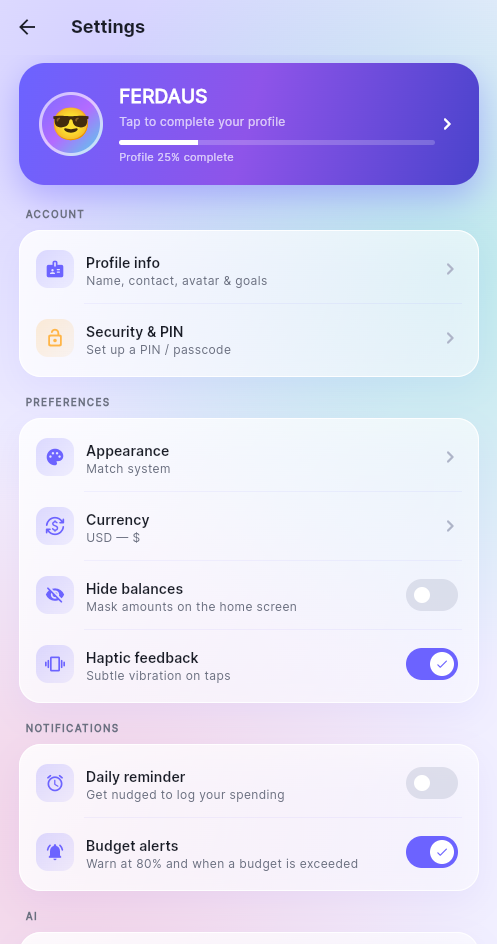
Settings
| Option | What it does |
|---|---|
| Appearance | Light, dark or match your phone |
| Currency | Choose from 20 currencies |
| Hide balances | Mask amounts on the home screen |
| Haptic feedback | Subtle vibration on taps |
| Daily reminder | A daily nudge to log spending, at a time you choose |
| Budget alerts | Warn at 80% and when a budget is exceeded |
| Claude AI | Connect or disconnect Claude |
| Savings target | Share of income to keep (used by the AI) |
| App info | Version, what's new, help & privacy |
Backup & export
In Settings → Data:
- Export backup: saves all your data as a file and opens the share sheet so you can store it in Drive, email it, etc.
- Import backup: restores a backup file. This replaces the current data, and the app asks you to confirm first. If the file isn't a valid FinanceAI backup, nothing is changed.
- Export CSV: all transactions as a spreadsheet file.
- Load demo data: adds sample transactions to explore the app.
- Clear all data: deletes every transaction and budget (asks for your PIN if the app lock is on).
Backups and CSV export are available in the Android, iOS and desktop apps. Browsers don't allow saving these files.
FAQ
Where is my data stored?
On your device only, in the app's private database. Nothing is uploaded unless you connect Claude AI.
Do I need internet or an account?
No. The app works fully offline with no sign-up. Internet is only used for Claude AI (optional) and to download the app's font the first time it runs.
How is "safe to spend" calculated?
Your income this month (or your 3-month average), minus your savings target and what you've already spent, divided by the days left in the month.
I forgot my PIN. What can I do?
For your security, the PIN can't be recovered. Reinstalling the app removes the PIN along with local data, so keep regular backups.
Why isn't my reminder showing?
Allow notifications for FinanceAI in your phone's settings. Reminders aren't available in the web version.
Is the AI's advice financial advice?
No. Forecasts, scores and AI suggestions are estimates for guidance only and aren't financial, tax, legal or investment advice.
Privacy
- No account, no sign-up and no analytics or advertising SDKs.
- Transactions, budgets, profile and settings are stored only on the device.
- The PIN is stored as a salted hash in the platform's secure storage.
- On Android, app data is excluded from device cloud backups.
- If the user connects Claude AI, a summary of their finances and their questions are sent directly to Anthropic's API using their own key.
- The app downloads its typeface from Google Fonts the first time it runs. No personal data is included.
Publishers: you're responsible for your own store privacy policy and data-safety forms. Review them against your final configuration (for example, whether you enable Claude by default or add analytics).
Changelog
Version 1.0.0 · Initial release
- Glass UI with animated aurora background, light & dark themes
- Home dashboard with spending trend, category donut and AI Daily Brief
- On-device AI Coach: health score, forecast, safe-to-spend, subscriptions, anomaly radar
- Ask FinanceAI chat with optional Claude AI
- Smart auto-category for new transactions
- Budgets with 80% and over-budget alerts
- PIN / passcode lock (4 or 6 digits), biometrics, auto-lock and lock-out protection
- Rich profiles with avatars, income & savings goals, multiple profiles
- Backup / restore, CSV export, daily reminder
Credits & support
Credits
- Built with Flutter.
- Font: Inter (SIL Open Font License).
- App icons: Material Icons (Apache 2.0).
- Documentation icons: Font Awesome Free (icons CC BY 4.0, fonts SIL OFL 1.1, code MIT).
- Open-source package licenses are listed in the app under About → Open-source licenses.
- Claude is a product of Anthropic. Claude AI is optional and uses each user's own API key.
Need help?
Please read the Troubleshooting section first. If you still need help, contact us through the item's Support tab on CodeCanyon and include your Flutter version (flutter --version) and the full error message.
Enjoying FinanceAI? A rating on CodeCanyon helps a lot.